How to Take Notes in Notability
Real advice from students and educators who use the app every day.

TL;DR
- Read the following recommendations from real students and educators who use Notability everyday.
- Take notes more effectively by combining audio recording, handwriting, and typed notes.
- Turn lectures into study tools with flashcards, quizzes, and summaries.
- Stay organized with folders and visual cues like color-coding.
- Review smarter by searching through and chatting with your notes.
- Mix note-taking styles to match how you learn best.
- Adapt your system over time. Find what works and refine it.
There’s no single “right” way to take notes. Some people write everything down. Others prefer summaries, diagrams, or flashcards. But across classrooms, lecture halls, and even hospitals, one thing is clear: the best note-taking systems aren’t just about capturing information. Instead, they help you understand, organize, and revisit your content.
To help you find what works for you, we spoke with three Notability users—a clinical anesthesia resident, a law student, and a pediatrician—about how they take notes, study, and teach. Their experiences reveal that great notes aren’t about doing more work, but working smarter.
1. Capture Everything Without Falling Behind
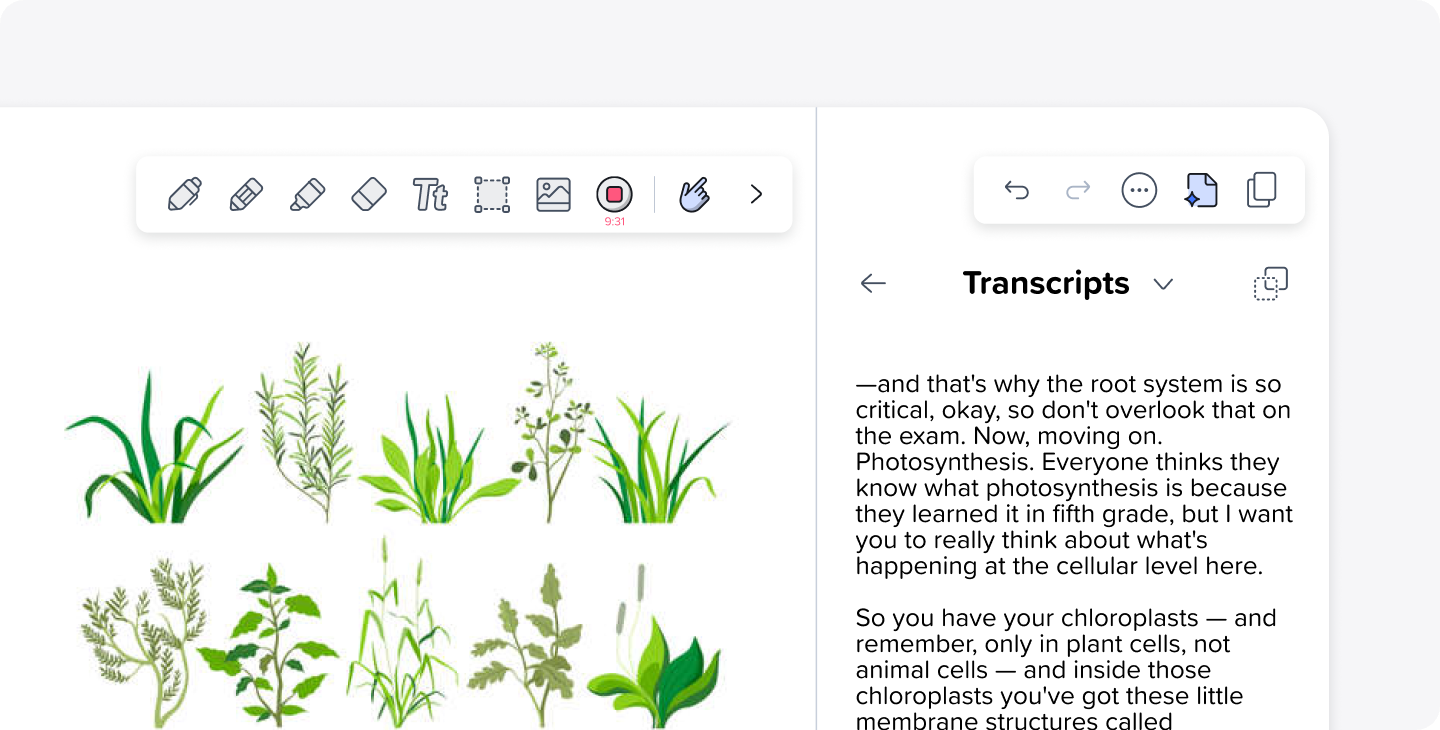
One of the biggest challenges in note-taking is keeping up. When you’re focused on writing, it’s easy to miss what comes next.
For Shelby, a clinical anesthesia resident juggling 70–80 hours of study a week, recording lectures changed everything. “I use Notability to record all of my professors. So, getting the audio of the lecture is very important… we get to school, open Notability, and record the professor speaking,” she says.
By pairing audio recordings with notes, you don’t have to choose between listening and writing. You can stay present during class and revisit key moments later.
Ruby, a second-year law student, takes a similar approach. “I also like to record the lectures because staying focused so long is quite difficult. So when I’ve got another thing just to review at home, I go to my notes in Notability instead of going to the school’s page and rewatching the lectures.”
At your next lecture or meeting, use the Audio Recording feature to record the discussion while taking light notes. Then, you can play the audio back to review complex sections. This will allow you to focus on understanding in the moment of the lecture, rather than jotting down every detail.
2. Let Your Notes Work for You
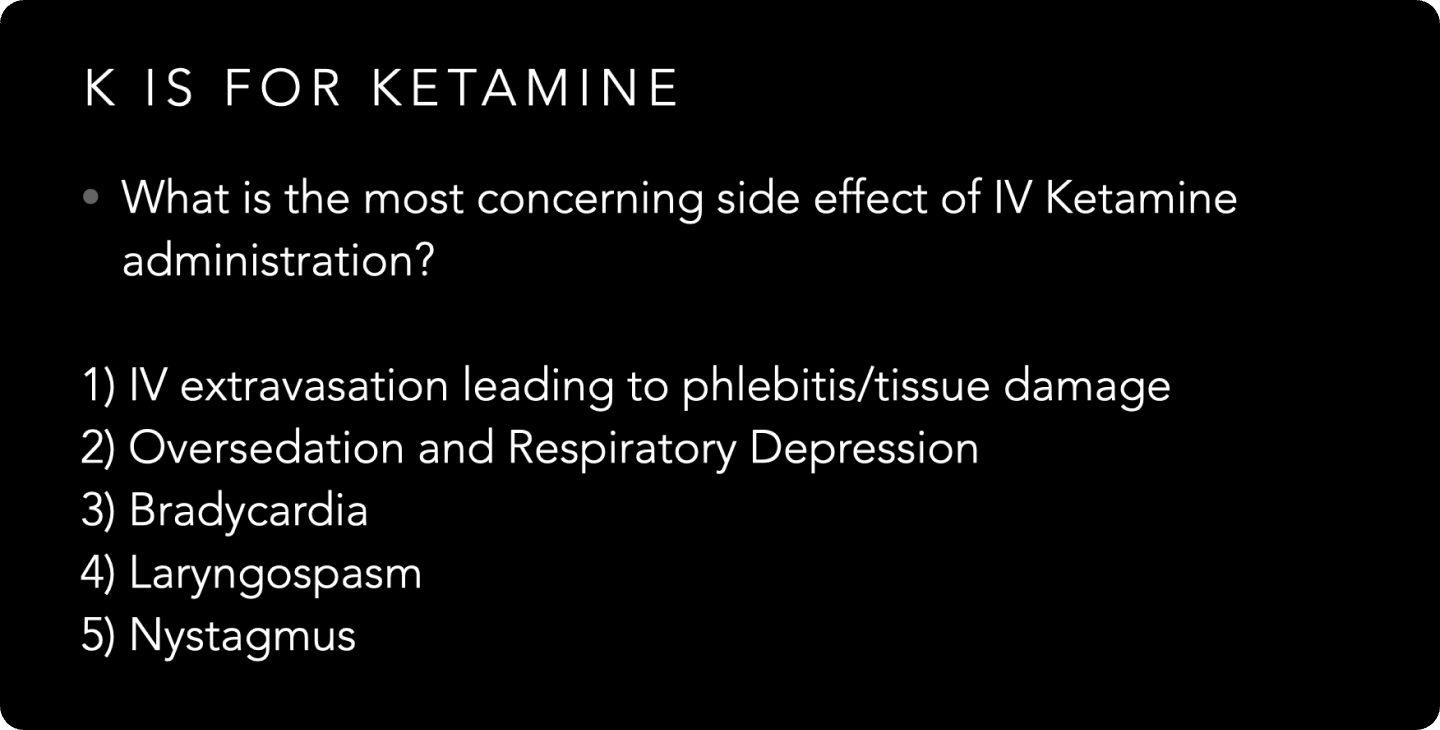
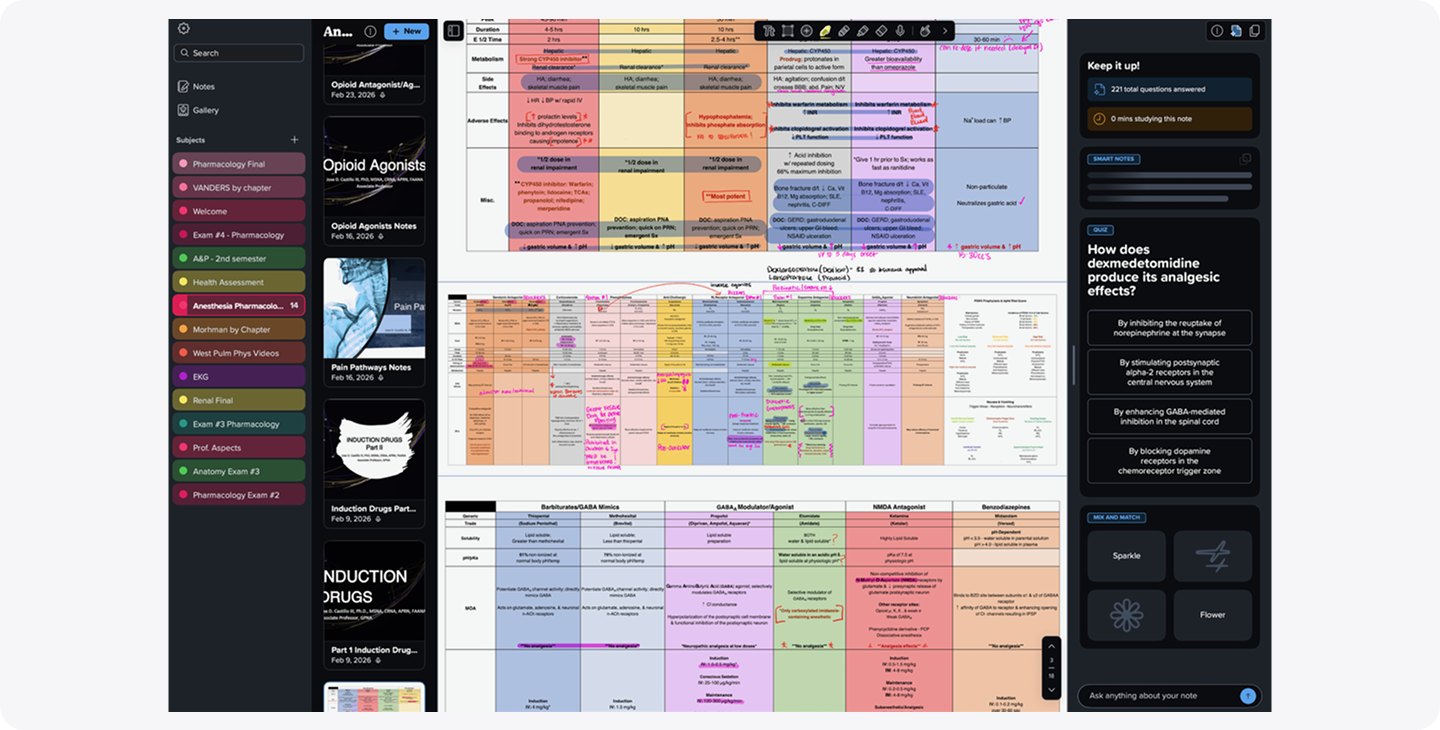
Taking notes is just the beginning. The real value comes from what you do with them afterward. Shelby uses Notability to turn lectures into study materials instantly. “I can make Notability create study material from a new lecture audio today. It‘ll make me 50 study flashcards, just like that,” she shares. Instead of spending hours rewriting notes or building flashcards manually, you can generate quizzes, summaries, and study aids directly from your content.
Dr. Chris, a pediatrics emergency medicine specialist, primarily uses Notability for teaching trainees, from medical students all the way up to senior fellows. His students attend his talks to complete Continuing Medical Education (CME) requirements to maintain and increase their medical knowledge and performance.
“I have a number of presentations covering pediatric topics. I’ll update them with recent clinical evidence, but there are some things that don't change about pediatrics. And it's important especially when you're dealing with junior trainees to hammer home the basics,” he states. “I’ll drag and drop my PowerPoint lectures into Notability. Notability will generate multiple choice questions for me, and I’ll go through them. Partly it helps me refresh before I do a talk, but then I can insert those questions into the talk to both engage my audience and meet CME requirements.”
To keep your class engaged as an educator, or to continue studying even after class as a student, you can turn your notes into flashcards or quiz questions using Learn. Use these quiz questions to test understanding and reinforce learning with active recall, either through multiple choice questions, mix or match, or fill in the blank questions.
3. Keep Your Notes Organized
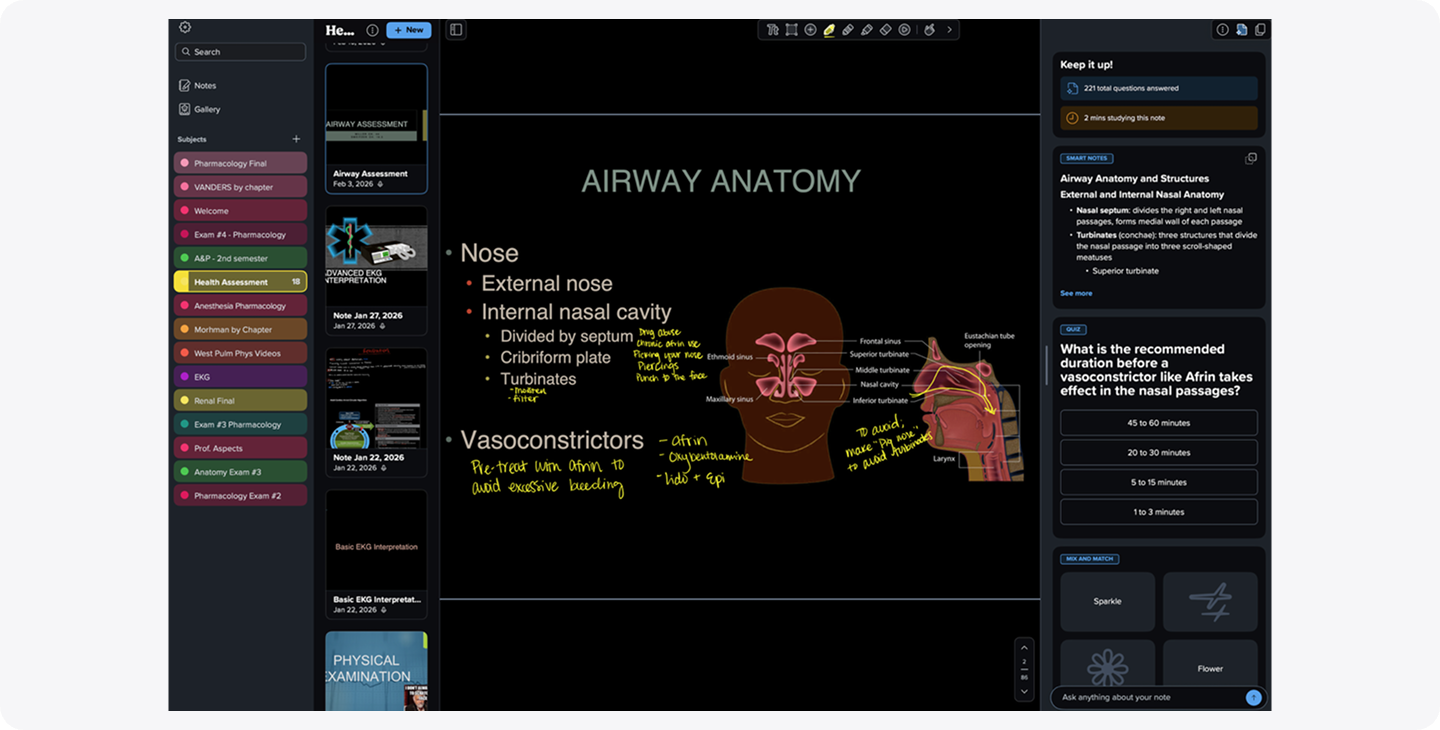
Disorganized notes create unnecessary stress. A clear structure makes everything easier, whether you’re studying now or reviewing months later. Shelby refined her system over time while in school. “In the beginning, I would upload a new PowerPoint every day, so all my notes were split up. Then I had a friend that recommended I keep all the same content into one note and continue to record on the same note every day until we’ve finished covering the topic. That way, all lecture audios are together with one content topic. Now, I organize my notes by subject and then by semester… that way when I go there, all the materials are together all the time.”
Ruby also divides her notes by her course subjects, and uses colors to designate them. You can try something similar, by creating Folders by class subject or project. Keep all your related materials, such as slides, notes, and audio recordings in one folder. Then, use colors, highlights, or stickers to make your key ideas stand out.
Notes also don’t have to be plain to be effective. In fact, making them visually engaging can help you stay motivated and remember more. Ruby adds personality to her notes, describing, “I love the stickers in Notability. I put bows on all the pictures to make my notes more aesthetically pleasing.”
4. Mix Methods to Match How You Think
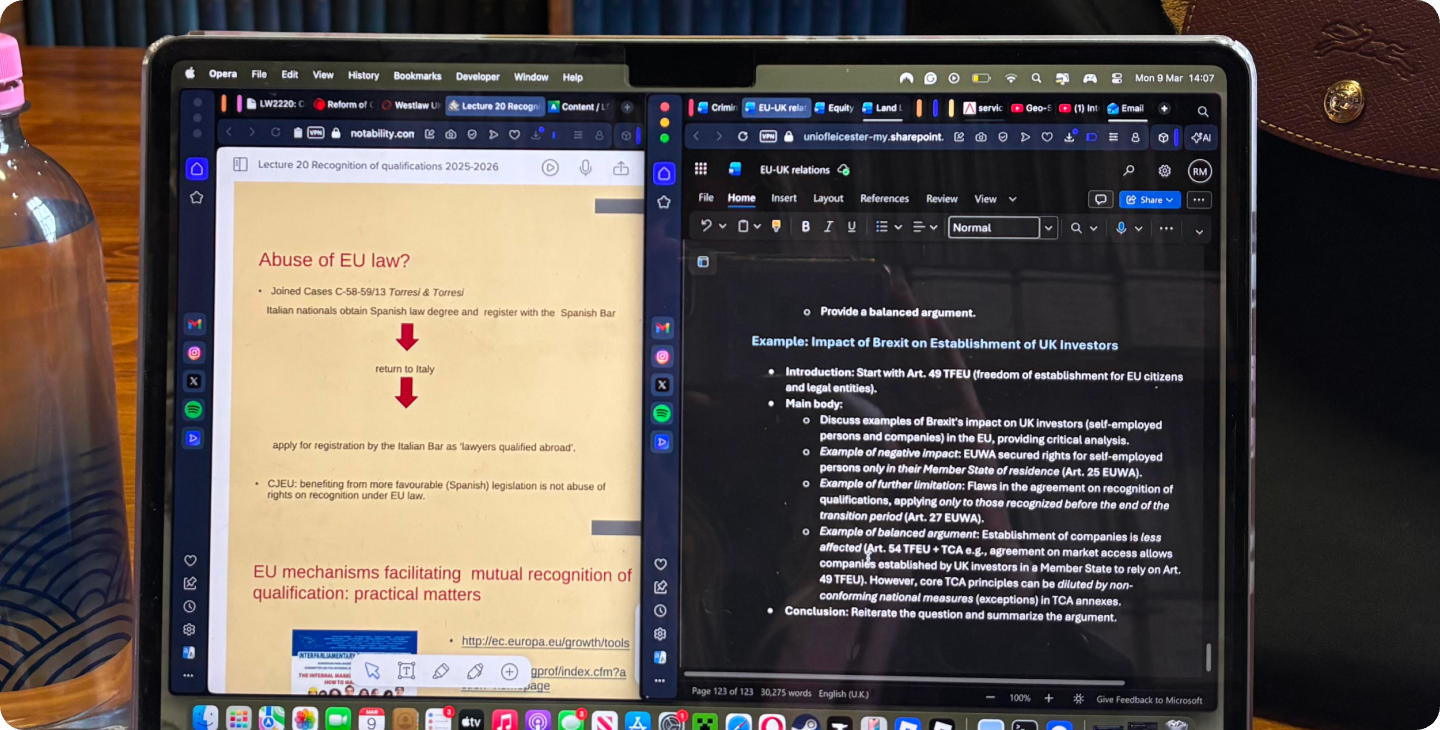
There’s no rule that says you have to choose between typing or handwriting when taking notes. You can, and should, use both depending on which method helps you learn more effectively. Ruby combines multiple approaches seamlessly, by opening two windows of notes in a split screen on her laptop or iPad.
Shelby takes it even further by using multiple devices, all with Notability open, at once. “I have Notability up on my laptop to record. Then on my iPad, I have Notability open to handwrite on the PowerPoint directly. Then on another Chrome tab, I can chat with another note for another class without interfering with the app's recording in that subject right then. So, if I'm like, ‘Oh, I think this other professor mentioned this,’ then I can pull it up on Chrome, search another note while it's recording on my computer, all while I'm handwriting on my iPad with my Apple Pencil. I have three Notability apps going at one time per class to make sure I get everything.”
Using a split screen is a great way to view materials and take notes at the same time. If you’d rather all your content to live in one place, you can also import any PDF, document, or image directly into Notability and start taking notes, or generate Smart Notes, instantly.
5. Review Smarter, Not Longer
Reviewing notes shouldn’t feel like starting over. The goal is to quickly find what matters and reinforce it. Ruby uses Notability to streamline revision. “I use Notability to review content on my iPad; that’s helpful when I’m skimming through topics.”
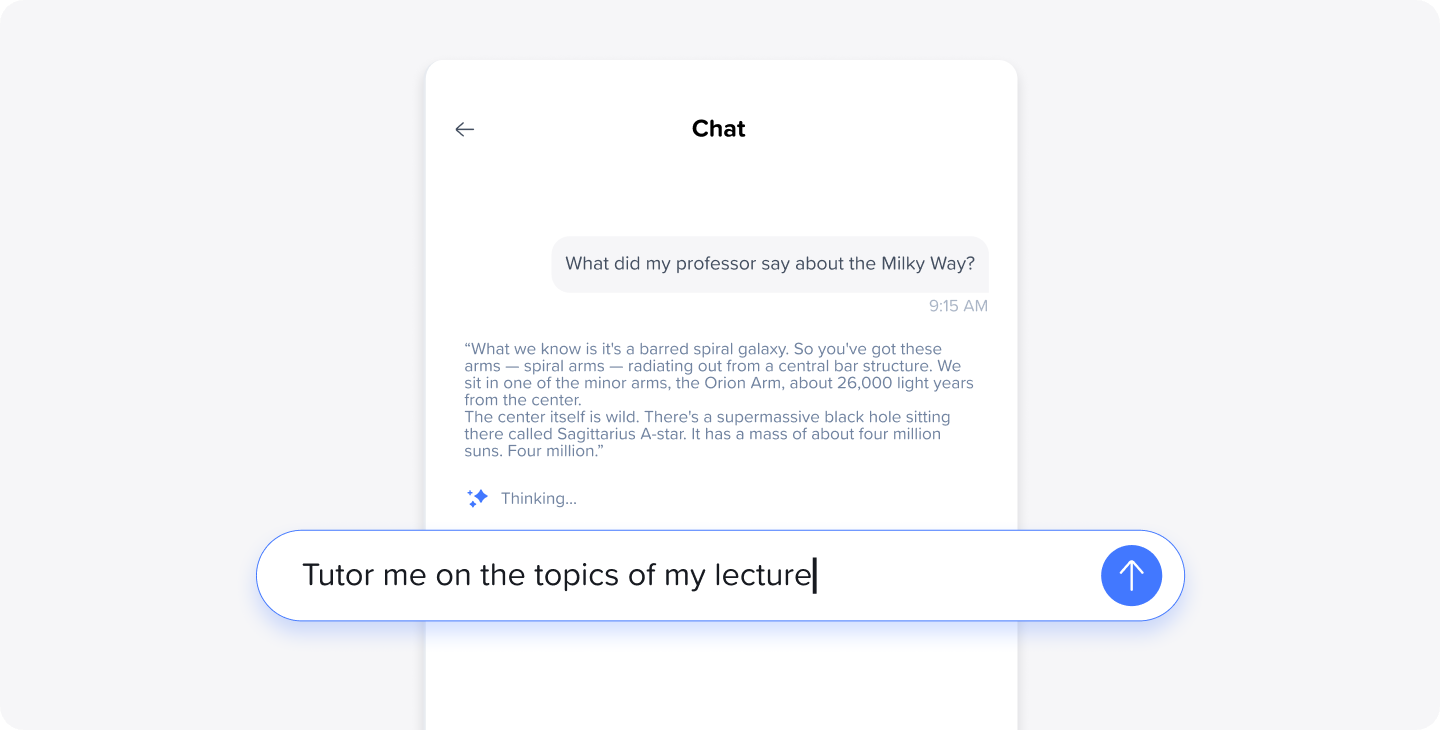
Shelby, on the other hand, highlights how powerful it is to search and interact with your notes. “Even the other day, one of my classmates was like, ‘Why am I remembering this specific topic? Did the professor mention it?’ And I literally went to Notability and entered in the chat feature, ‘Did the professor ever mention this topic?’ That saved us hours of scrolling and reading through our notes. It's just brilliant. It makes it more helpful when I go to study for each lecture.”
To save time while revising your notes, use the Search function to search through your notes instead of rereading everything. You can also chat with your notes directly to find and pull content within the note. This will help you focus on gaps in understanding, instead of reviewing things you already know.
6. Adapt Quickly and Find What Works for You
The most important advice from these users? Don’t stick with a system that isn’t working. Shelby puts it bluntly, “If you’re overwhelmed with your current study habits, make changes now. You have to learn what works for you.”
Ruby keeps her workflow manageable by breaking things down. “I make a checklist and I always use the Pomodoro method because that keeps me focused,” she explains.
And for Dr. Chris, adapting isn’t optional—it’s essential. Having taught pediatrics for 20 years, he has noticed that attention spans among his trainees are growing shorter. “The way trainees expect to be taught now includes bite-sized information to keep them engaged. That’s why I try to involve quizzing and questions and summaries as much as possible in my teaching.”
We recommend experimenting with different features and workflows within Notability to find what works best for you. After you make these discoveries, continue to adjust your system as your workload changes. Your focus shouldn’t be on capturing every detail perfectly, but rather capturing content in an efficient manner.
The Takeaway
Whether you’re studying for exams, preparing lectures, or managing a packed schedule, better notes aren’t about doing more. They’re about using the right tools in the right way. As Shelby puts it, “Notability has absolutely saved me time and reduced my stress, and improved my retention. 10,000%.”
The best system is the one that helps you stay focused, organized, and confident in what you’re learning. So try a few of these approaches, experiment with your workflow, and build a note-taking style that works for you.

.png)