Introducing Whiteboard, Made for Your Biggest Ideas
Notability’s new Whiteboard is here. Study for finals with shapes and connectors on an infinite canvas.
TL;DR
- Notability's Whiteboard is out on iOS, Android, web, and desktop today. The infinite canvas has no edges to work around, so you can build as big as your ideas get.
- Connectors stay attached to the Shapes, as they link and reroute when you move things around. Choose a square, circle, triangle, star, rhombus, or polygon from the Shapes tray and tap once to drop one in place.
- Coming December 1st, Study from Folders builds one quiz from every note in a class folder.
Finals are two weeks out, and a semester’s worth of Orgo is spread across lecture notes, slides, and a textbook. Half the work of studying for a cumulative exam is seeing how it all connects, and that’s hard to do one page at a time.
Our new Whiteboard, out today on every platform and device, gives you unlimited space to brainstorm, organize your thoughts, and bring your ideas together on an infinite canvas. There’s no need to switch tabs or create a new note, you can sketch the key concepts, draw the arrows between them, label how each idea leads to the next, and share the note so your study group can build the review sheet with you all at the same time.
Give your ideas room to grow
Draw near any side of a whiteboard and it keeps going. A timeline can run the length of the semester, and a mind map can branch in every direction at once.
Pinch to zoom out and see the whole unit at once, then zoom back in to work on one corner. Drop images, GIFs, and text blocks next to your sketches so lecture slides and textbook figures sit beside the ideas they explain.
Build a study diagram with shapes and connectors
Shapes give you clean building blocks for concept maps, timelines, process diagrams, or whatever else your finals call for. Pick a square, circle, triangle, star, rhombus, or polygon from the Shapes tray. Drag to draw it at any size, or tap to drop it in place. Write on and around any shape with your pen.
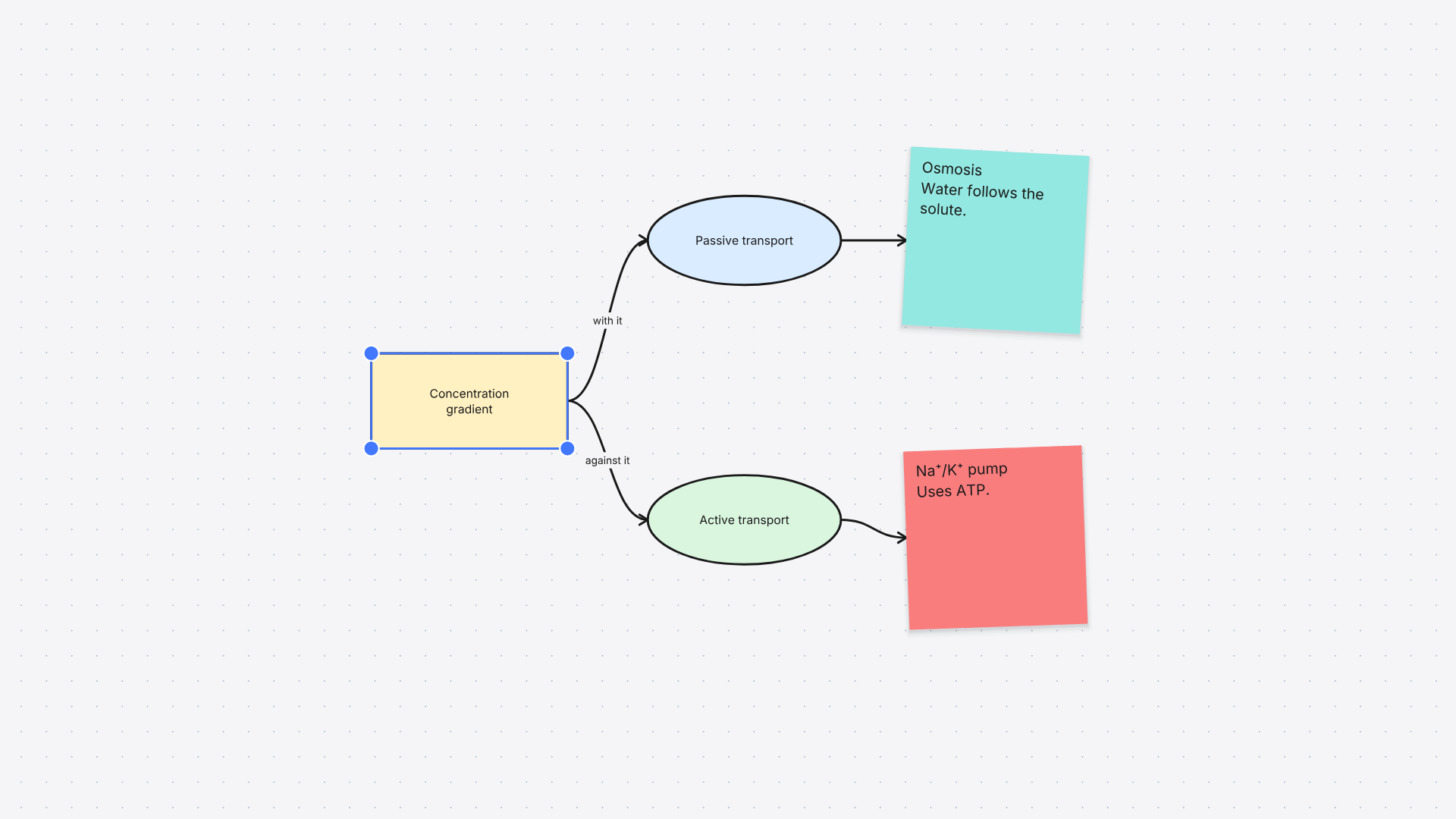
Connectors turn those Shapes into a diagram you can keep rearranging. Draw an arrow from one shape to another and it stays attached to both, so when you move a box to make room for a new idea, the line follows. For diagrams that build one step at a time, like the stages of the Krebs cycle, select a shape and tap one of its arrow handles to add the next connected box.
To draw your first connector:
- Pick Arrow, the first item in the Shapes tray.
- Drag from one shape to another. Each end attaches to the side of the shape it lands on.
- Tap Arrow again to switch between straight, elbow, and curved lines, or change the caps on each end.
When an arrow needs more explanation, double-tap it to add a label. The line between “Supply” and “Price” can say exactly how they relate, in the same text styles as the rest of your note.
Work on the same diagram from any device
Start a diagram on your iPad during a review session and finish it on your laptop in the library. Shapes, connector routes, caps, labels, and styles look the same on iOS, Android, and the web.
Share the note and your classmates can edit it at the same time. One person can move a shape while another rewrites a label, and every change shows up for everyone without a refresh. You can also copy Shapes and Connectors from one Whiteboard to another, or paste a diagram into a regular note when it belongs with your written notes.
Turn a whole class folder into one quiz, coming in December
Your final pulls from the entire course, and studying one note at a time makes it easy to miss something from week three. Study from Folders, coming in December, lets you pick a class folder and build a quiz from every note inside it. Lecture notes, annotated slides, and the whiteboard you made last week all feed into the same set of questions.
Each folder quiz saves so you can reopen it whenever you want another round. Take it early in finals season to find the topics that need more work, then come back to it the night before the exam.
Map out your finals, one board at a time
The best place to start is the unit you feel least confident about, so open a new Whiteboard and lay out its key ideas before moving on to the next one. As you add each unit and connect it to the rest, the whole course comes together on a single board by the time your exam rolls around. Good luck on finals!
Frequently asked questions
Q: Does Notability have an infinite canvas?
A: Yes. Whiteboard is Notability’s infinite canvas. Keep drawing in any direction and the board grows with you.
Q: Can I make mind maps and flowcharts in Notability?
A: Whiteboard is built for them. Draw Shapes for each idea, link them with connectors, and use quick-connect handles to add the next step in one tap.
Q: Do arrows stay connected when I move shapes around?
A: They do. Connectors attach to the side of the shape they land on, and they reroute when you move, resize, or rotate the shape.
Q: Can my study group edit the same whiteboard at the same time?
A: Share the note and everyone can work in it at once from iOS, Android, or the web. Changes show up for everyone without a refresh.
Q: Can I put a diagram in a regular note?
A: Copy Shapes and Connectors from a whiteboard and paste them into any regular note, or into another whiteboard.