Notability Web is Here
Learn how to navigate the Notability web app, turn notes into study tools, and see what’s coming next.

TL;DR
- Notability Web brings Notability to your browser, so you can take notes and study without downloads or device switching. Create, organize, and format typed notes for classes, meetings, brainstorming sessions, and more.
- Record audio with live transcripts and import files like PDFs, DOCs, and PPTs.
- Turn notes into study tools with Notability Learn, including summaries, quizzes, flashcards, and Chat with Your Notes.
- Learn directly from YouTube videos by generating transcripts, summaries, and personalized quizzes.
- More features are coming soon, including live collaboration and personalized home screens.
If you’ve ever wished you could open Notability anywhere without downloads, updates, or switching devices, you’re going to like this.
Notability has long been a favorite for capturing ideas, lectures, and meeting notes. Now, that same note-taking and learning experience lives right in your browser. The Notability web app brings everything you love about Notability to the web, so you can jump in wherever you are and get straight to work.
Whether you’re a student balancing classes or a professional keeping track of projects and meetings, this guide will help you get comfortable with Notability Web. We’ll cover how to get started, how to use it for studying and learning, and what new features are on the way. And if you’re looking for a full walkthrough of Notability on iOS, you can find that guide here.
Getting Started with Notability Web
If you’ve used Notability on iPad or Mac before, Notability Web will feel instantly familiar. It’s designed to be fast, intuitive, and distraction-free. To get started, just sign in with your Notability account or create one if you’re new. Once you’re in, you can:
- Import files like PDFs, DOCs, or PPTs
- Record a lecture or meeting and generate an automatic transcript
- Create a new note and start typing right away
- Paste a YouTube link to generate a summary or personalized quiz
If you’re already using Notability Cloud, your notes from your iPad will appear instantly in the web app. That means you can pick up exactly where you left off, whether you’re switching devices or working from a shared computer.
Finding Your Way Around
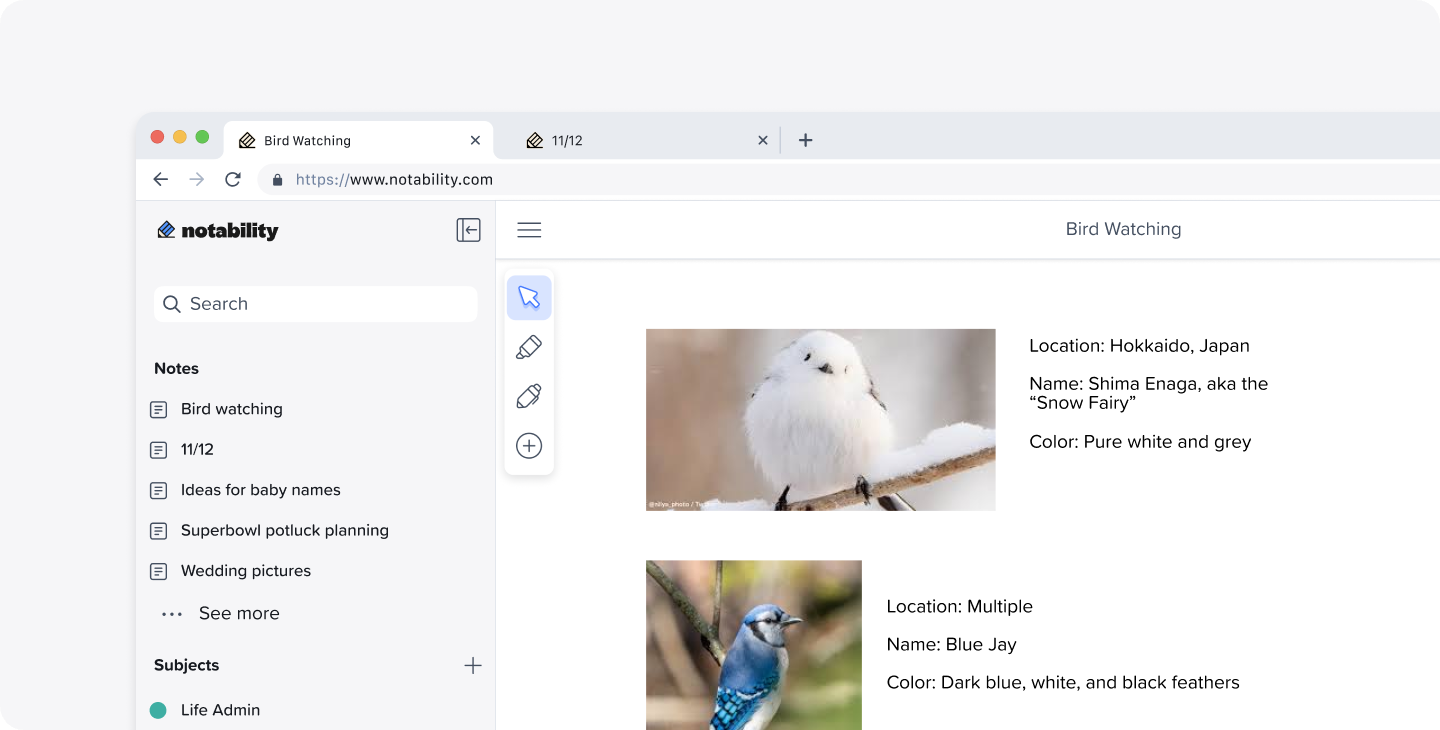
The web app layout is clean and focused, so it’s easy to stay organized without feeling overwhelmed. Your sidebar library is where all your notes live. You can browse, open, and group notes into folders and subjects based on classes, projects, or anything else that makes sense for you. A quick tip: when you create folders, add labels and colors. It makes finding things later much easier.
From your library, you can rename notes, duplicate them, move them between folders, copy a shareable link, open notes in new tabs, or delete them. You can also sort notes by recently edited, date created, or alphabetically.
When you open a note, the main editor is where everything happens. This is where you’ll type, format, review, and learn. The toolbar gives you quick access to note actions, formatting tools, and learning features, making it easy to move between writing and reviewing without breaking your flow.
Using the Web App for Note-Taking
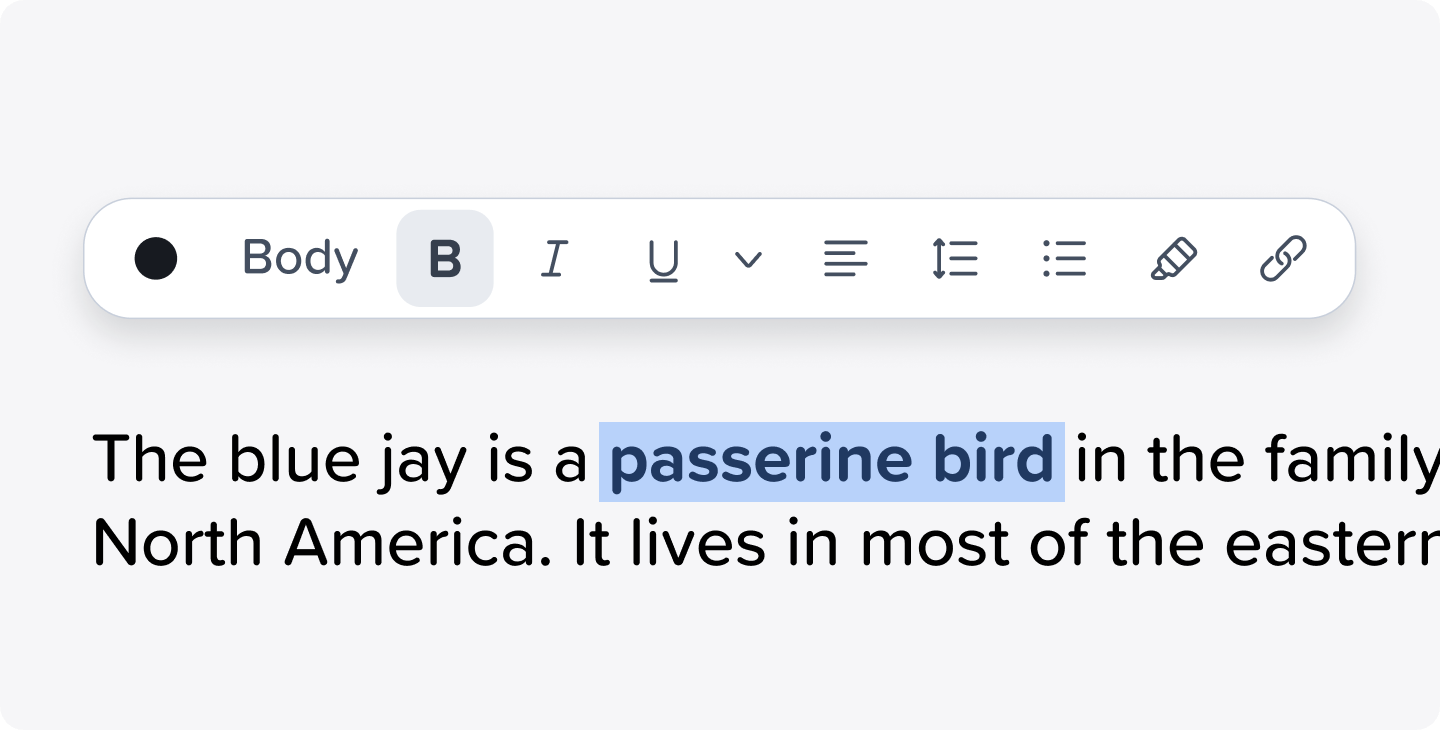
Notability Web is especially great for typed notes, which makes it ideal for lectures, meetings, brainstorming sessions, and outlines. You can create a new note straight from the home screen and start typing immediately. Everything saves automatically, so there’s no need to worry about losing your work.
Clear titles and consistent structure go a long way. Using headings, spacing, and lists helps make your notes easier to scan later, especially when you turn them into study materials.
Pro Tip: For quick formatting, type / on a new line to open the slash menu. From there, you can instantly switch a line into a heading, checklist, bulleted list, numbered list, or quote.
Just like on iPad, you can add media to your notes. Import PDFs for reference material or add photos when diagrams or visuals help explain a concept. Images can also make your notes more engaging and easier to revisit later.
To emphasize key ideas, use the Pen tool to draw directly on your note with your mouse, or use the highlighter to mark important sections with translucent ink. You can highlight freely anywhere on the page or directly over typed text.
Sharing is just as simple. Tap the share icon in the top-right corner, and Notability will generate a link to your note. You can choose whether the link is Public or Private. Public notes allow any Notability user with the link to view and edit the note.
Studying with Learn
Notability isn’t just for capturing information. It’s also built to help you learn from it. The web app includes Notability Learn, an AI-powered feature that turns your notes into interactive study tools. Click the Learn icon in the top-right corner to transform your notes into material you can actually review and retain. This is especially useful for exam prep, certifications, or reviewing complex meeting notes before a presentation.
With Learn, you can use:
- Live Transcripts: Automatically generate text in real time while recording audio
- Smart Notes: Compile key points from imported documents, typed content, or recordings
- Quizzes: Test your understanding with multiple-choice, mix-and-match, and fill-in-the-blank questions
- Flashcards: Review key terms and concepts from your notes
- Chat with Your Notes: Ask questions and get instant answers based on your own content
Tips for Getting the Most Out of Notability Web
A few small habits can make a big difference:
- Use the web app as your productivity hub. It’s perfect for focused typing sessions and quick reviews between classes or meetings.
- Import different file types, including files from your computer, Google Drive, or Microsoft Office.
- Keep notes well-structured for better summaries and more accurate quizzes.
- Review regularly. Turning notes into quizzes soon after writing them helps reinforce learning while the material is still fresh.
What’s New and Coming Soon
Notability Web is evolving quickly, and there’s a lot to be excited about.
- YouTube videos are now fully supported. You can play videos directly in the web app, generate transcripts instantly, summarize them with Learn, and turn them into personalized quizzes and flashcards. This is perfect for recorded lectures, tutorials, and skill-building videos.
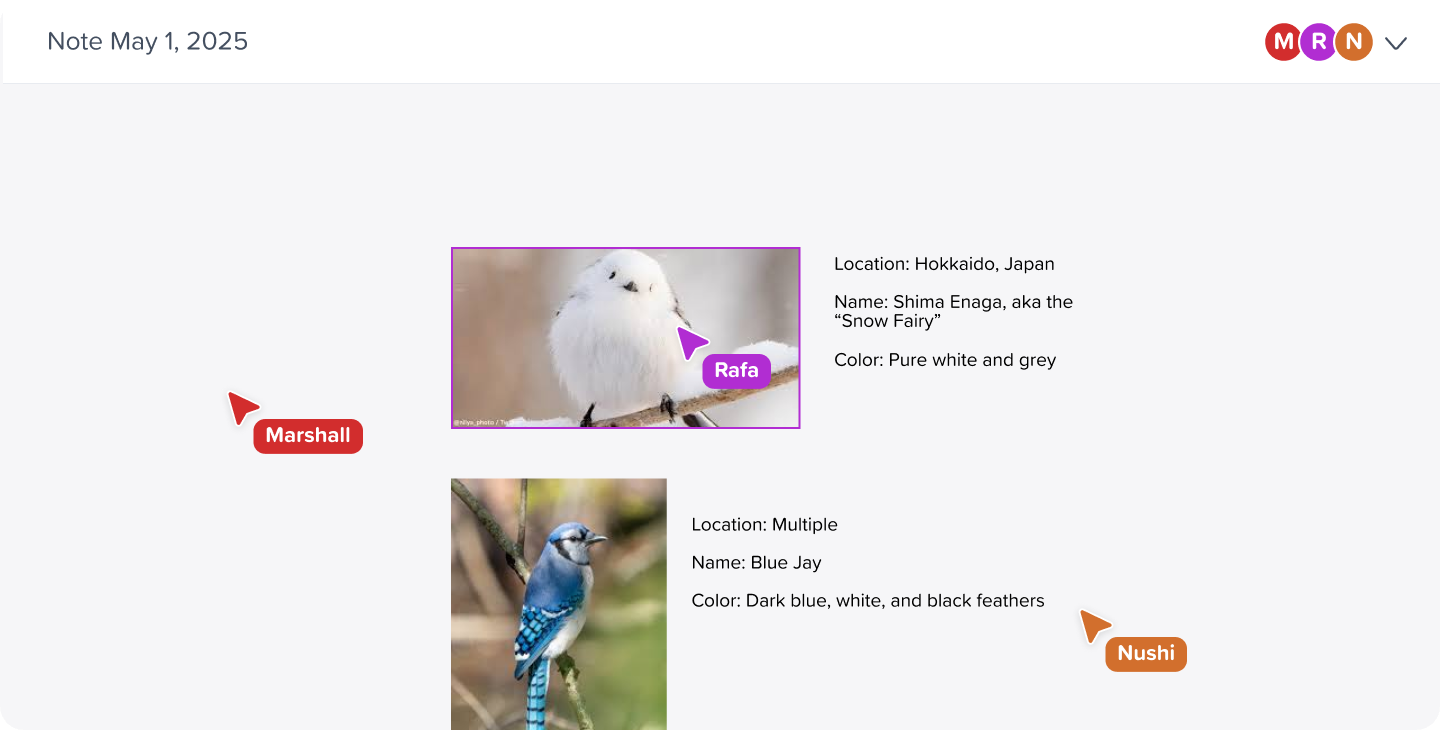
- Live collaboration is coming soon. You’ll be able to share notes with classmates or teammates and work together in real time. Everyone can edit simultaneously, see where others are working, and watch changes sync instantly. It’s a big upgrade for group projects, study sessions, and team meetings. Note: live collaboration will be available on Notability Cloud.
- Start a quiz on the home screen. On the home screen, you’ll be able to see a few sample quiz questions provided by Learn, based on your area of study. Answer the questions from the home screen itself to test your knowledge. Once the questions are completed, you can create your own quiz based on any of your notes. You’ll also be able to see recent quizzes you didn’t finish on the home screen, if you’d like to pick up where you left off.
- Students can set and track study goals. You’ll be able to select whether your study goals are casual, if they’re focused on long-term retention, or if you’re preparing for an exam. We’ll keep track of the progress of your goals on the home screen, and remind you when you still have quiz questions to complete.
Start Learning Smarter
Notability Web brings powerful note-taking and learning tools straight into your browser—perfect for students and professionals who want flexibility without sacrificing performance.
Whether you’re typing notes, studying with AI-powered quizzes, learning from YouTube videos, or preparing to collaborate with others, Notability Web helps you turn information into real understanding. And with even more features on the way, there’s never been a better time to get started.

.png)